
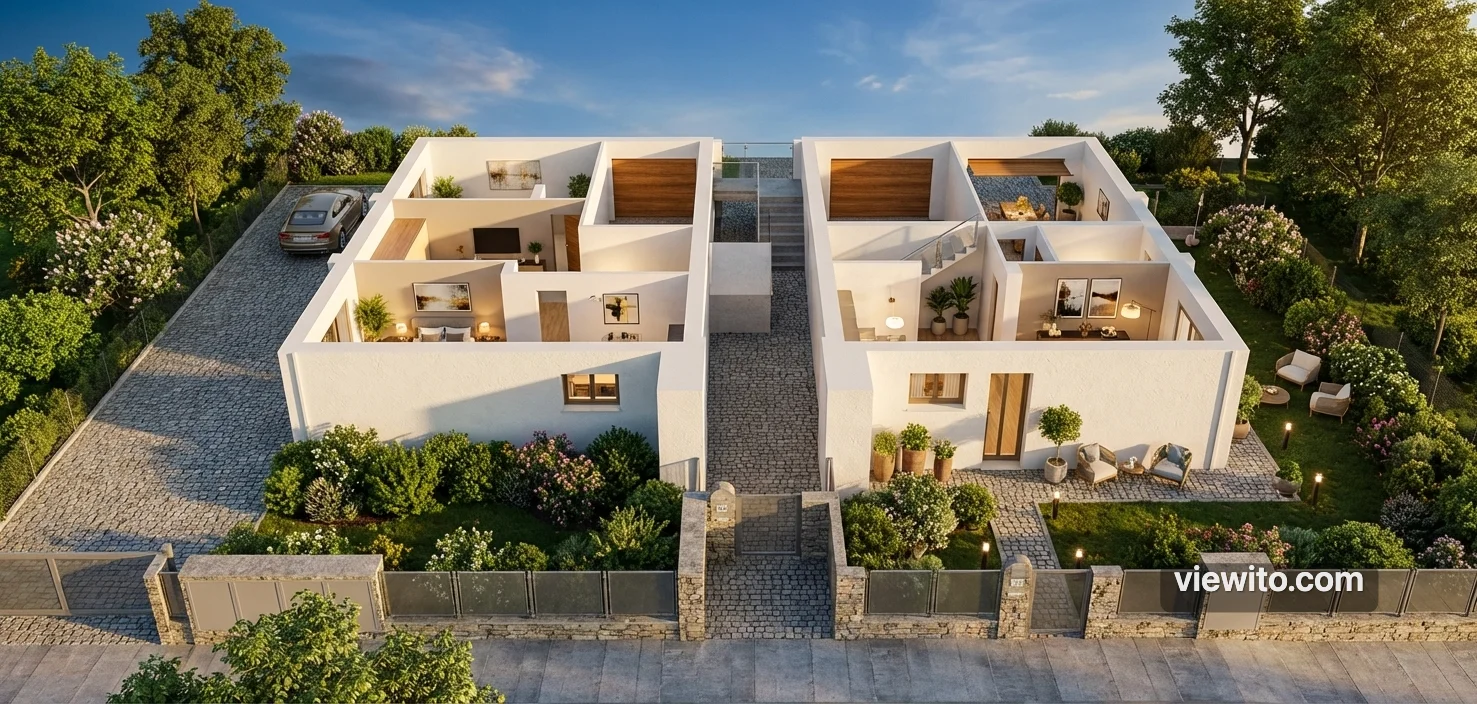
Viewito in brief
Viewito is a 3D design studio that works entirely in the browser: no installations, no heavy software. Models, furniture, materials, lights and renders are created and managed in a single environment, built to design real spaces such as pavilions, stands, rooms and properties.
This guide explains every function in detail: what it does, how it works, how to use it, and how it solves real problems. At the end you will find a complete use case that brings them all together.
1. The 3D engine and views
3D engine & views. The heart of the editor: a high-performance Three.js scene with three display modes.
The engine creates the 3D scene with post-processing (ambient occlusion), perspective and orthographic cameras. With one click you switch between Perspective (free 3D view), Plan/Top (2D, CAD-style, useful for precise placement) and Immersive (walking inside the space, for presentations and tours).
- Orbit, pan and zoom with mouse or touch
- Instant switching between 3D, plan and immersive view
- Minimap and FPS indicator
- Rendering pauses when not needed to avoid slowing the computer
2. The base editor and selection
Base editor & selection. All operations to manage objects in the scene, from selection to modification.
You select objects with a click (or multiple/rectangular selection) and distinguish them with a highlighted outline. You can duplicate, replace, delete, lock, rotate, scale and reflect. Every action is recorded in the history, so you can undo and redo at any time.
- Single, multiple and outline selection
- Full undo/redo with history
- Duplicate, replace, delete and lock
- Precise transformations (move, rotate, scale)
- Vertex editor to modify wall and fence points
3. The architectural tools
Architectural tools. Draw an entire building with parametric tools: walls, openings, roofs, stairs and much more.
The tools work by points: you click to draw a wall and the editor generates the geometry, with cut doors and windows, mitered corners and dimension labels. You can create roofs of various types, stairs (straight, L, U, spiral), fences, paths, columns, balconies, parking and gates. Everything stays editable: move a vertex and the geometry updates.
- Walls with doors and windows, even multi-level
- Sloped, mansard and hip roofs with gutters
- Stairs, fences, paths, columns, balconies
- Parking, gates, kitchens and architectural blocks
- Vertex editing and grid/angle snap
4. Furniture and catalogue
Furniture & catalogue. A furniture library you drag into the scene with smart placement.
You drag a piece of furniture from the catalogue and drop it: the editor places it automatically on the correct surface (floor, wall or ceiling), with a preview that turns green if the position is valid and red if not. You can rotate in increments, align to a wall and use grid snap. For fairs there is the automatic stand layout.
- Catalogue with drag & drop on the scene
- Placement on floor, wall and ceiling
- Validity preview (green/red)
- Rotation, wall alignment and snap
- Automatic trade-fair stand layout
5. Materials and textures
Materials & textures. Photorealistic PBR materials for every architectural role, with palette and textures.
Every surface has a role (wall, floor, ceiling, door, window) and a dedicated material. Choose from 23 colour finishes, procedural textures (wood, marble, tiles, brick, grass, concrete) or upload your own. Glass uses a physical material with refraction. With the eyedropper you copy a colour from the scene and apply it elsewhere.
- Role-based materials with physical rendering
- 23 colour finishes and physical glass
- Procedural and custom textures
- Colour picker and quick apply
- Scene-wide recolouring by preset
6. Measure, snap and precision
Measure, snap & precision. Measurement and alignment tools for exact design.
You measure distances, areas, perimeters and angles with clear labels. Snapping locks points to edges, grid or surface, so everything aligns perfectly. You can save camera views with thumbnails and apply themes to the scene (day, night, blueprint, sunset).
- Distance, area, perimeter and angle measurement
- Snap to grid, points, edges and surface
- Saved camera views with thumbnails
- Scene themes for presentation
7. History, auto-save and performance
History, auto-save & performance. Your work is always protected: history, automatic saving and monitoring.
Every action is recorded in the history (undo/redo). Auto-save with debounce protects your work and detects accidental deletions. A monitor shows FPS, draw calls and GPU memory, and the statistics help you understand where to optimise.
- Full history with undo/redo
- Auto-save with error protection
- FPS and GPU memory monitor
- Scene statistics and session comparison
8. Photorealistic and AI rendering
Photorealistic rendering. Two engines for quality images: path tracing and AI rendering.
Path tracing simulates light physically with studio quality, presets (Draft/Medium/High/Ultra), denoising and PNG/JPG export up to high resolution. AI rendering goes further: it captures a screenshot of your scene and turns it into a photorealistic image in seconds, keeping the same framing.
- Path tracing with presets and denoising
- PNG/JPG export at high resolution
- Image-to-image AI rendering (Gemini)
- Before/after comparison
9. Import and conversion
Import & conversion. Bring in your files and draw from existing projects.
You import DXF, DWG, PDF and images, plus GLTF/GLB and OBJ models. For floor plans, the editor automatically detects the walls from an image (OpenCV) and with AI import interprets the plan generating floors, ceilings and labels.
- DXF, DWG, PDF and image import
- GLTF/GLB and OBJ import
- Automatic wall detection from plans
- AI floor-plan import
10. Projects, events and layouts
Projects, events & layouts. Organise your work with a complete dashboard.
The dashboard manages projects, events, layouts, components and reports, with CSV/XLS export. You can create a new project from a neutral scene, cloning an existing one or starting from a model, and incremental backups protect the versions.
- Dashboard with CSV/XLS export
- Event and layout management with visibility
- New projects from neutral, clone or model scene
- Automatic incremental backups
11. Artificial Intelligence
Artificial Intelligence. Interact in natural language: AI creates, furnishes and renders.
A chatbot interprets commands in Italian or English: 'create a 4x4 room', 'add a sofa', 'furnish in modern style'. First it uses fast rules (cheap and instant), then a Gemini model for complex commands, and translates everything into concrete actions on the editor.
- 3D command chatbot in natural language
- Automatic room creation and furniture add
- Style and material application
- AI photorealistic rendering
12. Sharing and fair mode
Sharing & fairs. Share in real time, embed and use the app on fair screens.
You share the project with a real-time link to collaborate with the team or show a client. You embed the model in a site via iframe, and for fair touch screens there is a kiosk mode with simplified navigation and an immersive virtual tour.
- Real-time sharing and collaboration
- Project embed in an iframe
- Touch kiosk mode for fairs
- Immersive virtual tour
Complete use case: setting up a trade-fair pavilion
Let's put it all together in a real scenario. A company organises a 4,000 m² trade-fair pavilion and must present it to exhibitors and clients in 3D.
- 1. Import — Import the DWG plan of the pavilion; the walls are automatically recognised in 3D.
- 2. Architecture — Add the main entrance with a wide door, a staircase for the upper exhibition area and a path connecting the areas.
- 3. Furniture — Drag the stands from the catalogue and use the automatic layout to distribute them, aligning them to the grid in plan view.
- 4. Materials — Apply an industrial floor to the exhibition area and glass to the stand windows, using the eyedropper to keep a coherent palette.
- 5. Measures — Check the areas and routes to ensure they meet capacity regulations.
- 6. AI render — Generate a photorealistic render of the complete pavilion for the commercial material.
- 7. Views and themes — Save the best views and switch to a night theme for the presentation.
- 8. Sharing — Share the link with the exhibitors, who navigate the pavilion in real time and choose their stand.
In a few hours, without heavy software, an idea becomes a navigable, sellable and presentable 3D pavilion. This is the value of Viewito: every function solves a real step of the work, and together they turn a floor plan into an experience.
Want to try this on your space? Request an Expi4D demo.